As hybrid and remote work became a permanent fixture in most organisations. Microsoft Teams Rooms (MTR’s) are essential for creating consistent, high-quality meeting experiences. Even with the best certified devices, poor room planning will undermine your ROI and frustrate users. In this guide you’ll learn the top pitfalls we see. Plus, we’ll share some helpful tips to keep your future deployment on track.
Here are some of the most common mistake’s organisations make when planning a Microsoft Teams Room, and how to avoid them.
Underestimating Room Acoustics
One of the biggest mistakes is assuming that good microphones or speakers alone will fix poor sound quality. The reality is that room acoustics play a major role in how clearly people hear and are heard. Hard surfaces like glass walls, bare floors, or large meeting tables can cause echo and reverberation, while soft furnishings and acoustic panels help to absorb sound and improve clarity.
The workspace environment has a huge impact on speech intelligibility, user fatigue, and meeting clarity.
- Improving room acoustics leads to better a communication experience in hybrid settings. It also improves the accuracy of AI features such as meeting transcriptions and automated note taking.
- Aim for a reverberation time (RT60) of 0.6 seconds or less in meeting rooms to keep speech crisp.
- Use acoustic panels, microperforated ceiling tiles, or hanging baffles. At least two walls should be treated.
- Consider “invisible tech”: embed microphones and speakers into the ceiling so you don’t clutter tabletops.
Top Tip: Before you invest in technology, assess the acoustic properties of your meeting room. Solutions with built in audio AI can help compensate for challenging spaces, but acoustic treatment should always be part of the design conversation.
Choosing Based on Cheapest Price, Not Quality or Fit
When budgets are tight, it’s tempting to choose a system based on cost alone. But the cheapest solution isn’t always the most cost-effective in the long run.
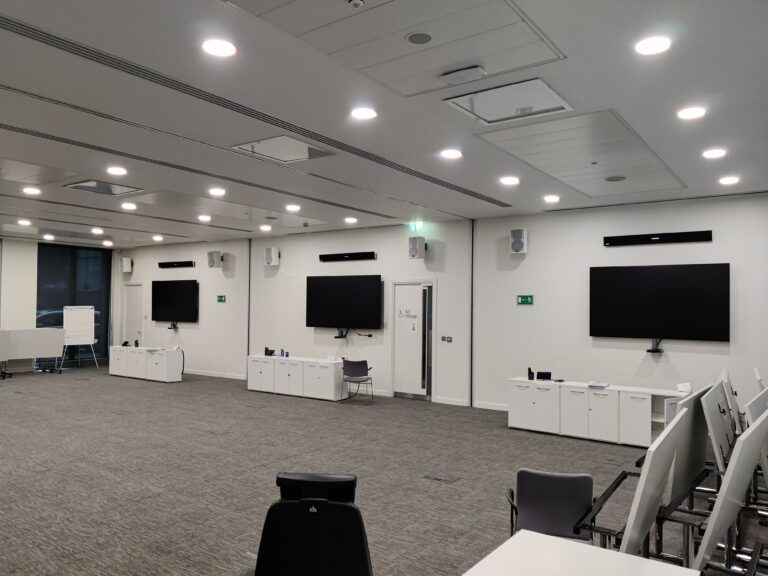
A small huddle room and a large boardroom have very different requirements, and a one-size-fits-all approach can lead to poor camera coverage, inconsistent audio pickup, or user confusion.
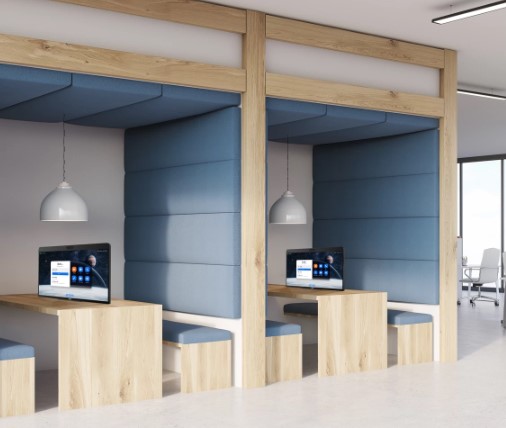
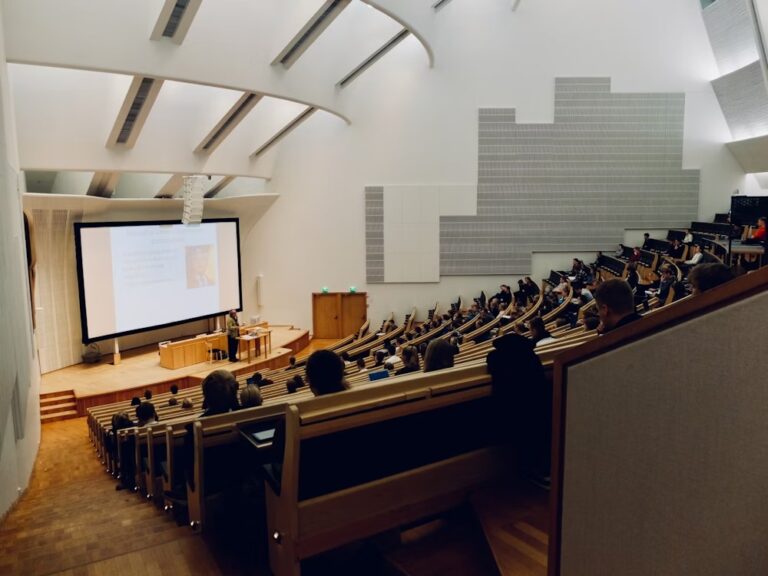
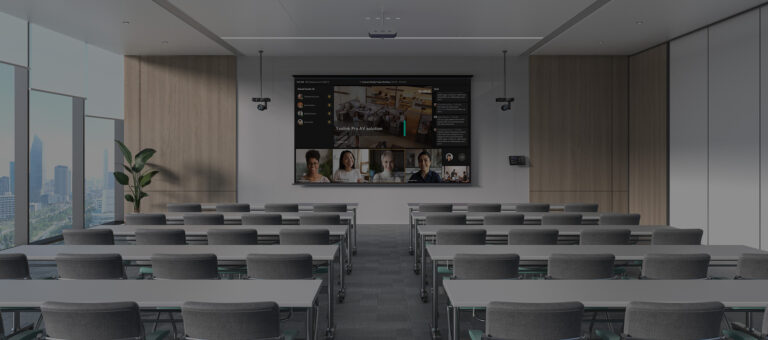
- Avoid a “one size fits all” mentality. A huddle room, medium room, and auditorium have vastly different requirements for mic arrays, camera coverage, and speaker strength.
- Look for certified systems that allow modular upgrades (e.g. add a second display, add a whiteboard camera) rather than full replacement down the line.
- Prioritise features that boost usability and adoptions (e.g., one-touch join, proximity join, intelligent cameras) rather than cutting corners on peripherals.
Tip: Focus on optimising your technology. Work with a certified partner who can specify solutions suited to your room size, use case, and platform. Investing in the right setup from the start reduces long-term support costs and ensures a better user experience.
Ignoring Display Positioning
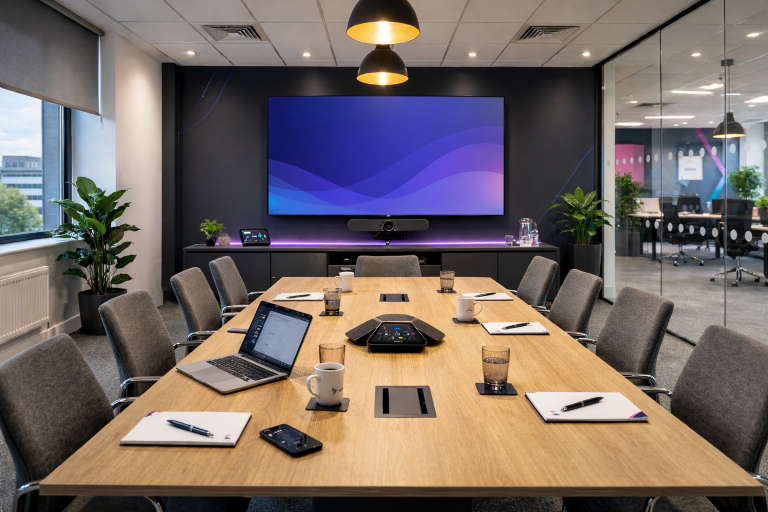
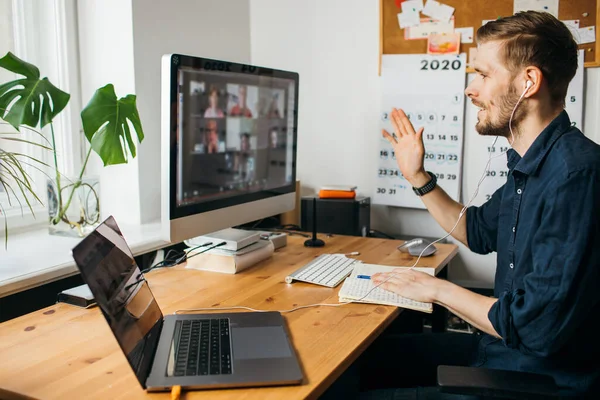
It’s easy to overlook the physical placement of displays when planning a Teams Room but it has a huge impact on meeting quality. If the camera or screen is mounted too high, participants appear disengaged. If the display is too small or too far away, remote participants and shared content become hard to see.
- Align the camera roughly to users’ eye lines. The camera lens should be at 120cm from the floor with the display positioned above it.
- When very large displays are needed for conference rooms then a camera positioned either side of the display maintains the eye line
- Position cameras slightly below or at screen level to avoid unflattering overhead or chin-up angles.
- Use intelligent cameras with auto framing and speaker tracking to maintain eye contact and framing without manual control.
- Pay attention to window position and the presence of bright sunlight which cause the camera iris to shut evening out bright light levels. This can cause people in the meeting room to look very dark. Window blinds that block bright sunlight make a big difference.
- Use professional displays with a matt or high haze coating to reduce reflections of room lights and windows
Overlooking Cable Management & Power
Behind every sleek Teams Room lies a maze of cables, poor cable management can cause real headaches. Loose or tangled cables not only look untidy but can lead to connectivity issues, trip hazards, and difficulty maintaining the system.
Likewise, forgetting to plan for power and network points at the right locations often results in last-minute compromises or exposed extension leads.
A sleek Teams Room can be brought down by cable chaos, power oversights, or limitations on servicing.
- Plan cable routes under floors, inside walls, or through protective tubing, with easy future access in mind.
- Locate power and network outlets both behind the display and near the table (for in-room devices).
- Use high quality shielded cables (e.g. Category 6A, fibre where needed) and terminate them properly. Signal loss and degradation is a silent killer.
- Consider power redundancy or UPS for critical elements (compute, touch console, audio systems) to survive brief outages.
Tip: Include cable routing and power provision early in the design process. During design, simulate “maintenance day” – think about how someone will get under the table, open racks, replace a device. Don’t allow awkward retrofits.
Forgetting About Future Scalability
Technology evolves quickly, and so do the needs of your teams. Designing a Microsoft Teams Room without considering future requirements can limit flexibility and increase upgrade costs later. Whether it’s adding a second display, integrating wireless sharing, forward-thinking planning will save time and money down the line.
You don’t want to lock yourself into outdated systems. Here’s how to think ahead:
- Build for BYOM (Bring Your Own Meeting) capability – modern rooms support USB-C plug-and-play connections, so users aren’t locked into Teams only.
- Track usage analytics: monitor no-shows, busiest rooms, utilization patterns, and adjust capacity or configuration.
- Leave headroom: extra compute capacity, spare network ports, modular mount points so you can add devices later.
- Embrace low-power, wellness, and sustainability design: lighting, HVAC, and AV should autosense occupancy to reduce energy usage.
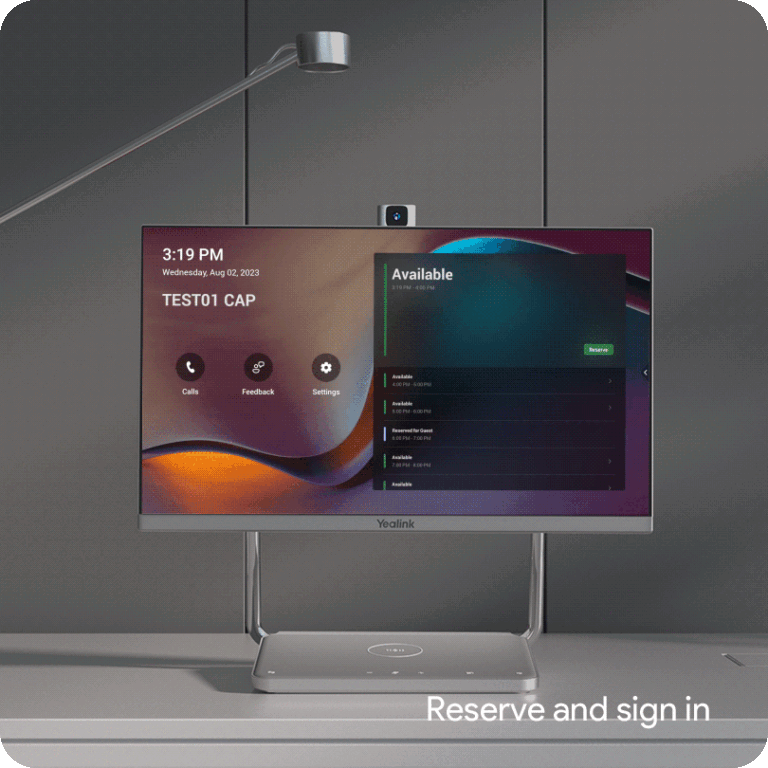
Tip: For example, Yealink ecosystems offer scalable options that can grow as your meeting needs evolve.
Final Thoughts
A well-planned Microsoft Teams Room is more than just a collection of devices, it’s a carefully designed environment that balances technology, space, and user experience. By avoiding these common mistakes, you’ll create a room that not only looks professional but also delivers seamless collaboration day after day.
If you’d like expert advice on designing or upgrading your Teams Rooms, speak to the VideoCentric team here. As a Microsoft Gold Partner with decades of experience in video collaboration, we can help you build a future-proof meeting space that works flawlessly every time.